
Saving Reports as PDF
it is possible to save reports as PDF files provided you have a PDF writer installed on your computer. If you have one installed then please see the instructions below for saving reports as PDF files:
- Set the PDF writer as your default printer in the ClockRite software. To do this go to 'Reports' at the top of the software

and then 'Printer Setup'. - In the Printer Setup window you want to select the PDF write as the default printer. I've included an example image below
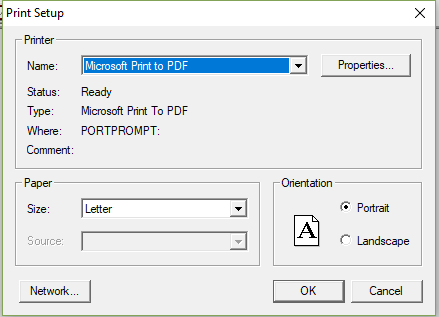
Press OK once this has been selected. - Once this has been done load up your report preview as normal then use the Printer icon at the top
 . This will open the print window and it should have the PDF writer as the printer device. If it does press OK and it should then give you the option to save the report as a PDF.
If you have any questions regarding the above just let us know.