Go2Clock - Setting Up Absences
Creating and Booking Absence in the Go2Clock Software
Absences allow you to create bookings for leave and sickness which can be monitored throughout the system. There are two categories of Absence: Holiday and Sick. Holidays are deducted from a users entitlement and sickness is used to calculate the bradford factor score.
In this article
Creating Absences
- Sign into the software with either the Super Admin account or a Full Dashboard User
- Under Schedule Management select the Holidays & Sick option and then navigate to SETUP | Leave, Holiday & Sick Patterns and click Create Leave.
- Leave Name - Navigate to the Leave Name tab(a). Give your absence a name(b) and colour(c). This will be used to identify the absence.
-
Leave Type - Navigate to the Leave Type tab(a).
i. Holiday or Sick Toggle(b) - Allows for the absence to be assigned as holiday or sick.
ii. Paid or Unpaid Toggle(c) - Allows for the absence to be assigned paid hours or unpaid hours.
- Paid Breaks - Navigate to the Paid Breaks tab(a). Here you can toggle if the absence contributes to Paid Break time on the Paid Break report.
- Time Period - Navigate to the Time Period tab(a). Set the Start Time(b) and End Time(c). This will be used to calculate the work hours(d). If there is normally an unpaid break adjust the end time accordingly so that work hours(d) is correct.
-
Payroll Rates - Navigate to the Payroll Rates tab(a). This is where you can assign pay codes to different rates when being used with the Payroll Reports. Cash adjustment options can also be applied from this tab.
i. Assign a reference code for payroll reporting(b) - Allows any created pay rate reference codes to be assigned against the available rates for the absence.
ii. Bonus Rate(c) - Allows the hours from the absence to be assigned to the bonus rate as well. This can then be assigned a reference code for report use.
iii. Cash Adjustments(e) - Allows for either a flat sum payment to be issued and for set hours to be added as well which can be assigned a pay code.
- Once all of the above setting have been configured click create at the bottom of the screen.
Creating Half Day Absences
-
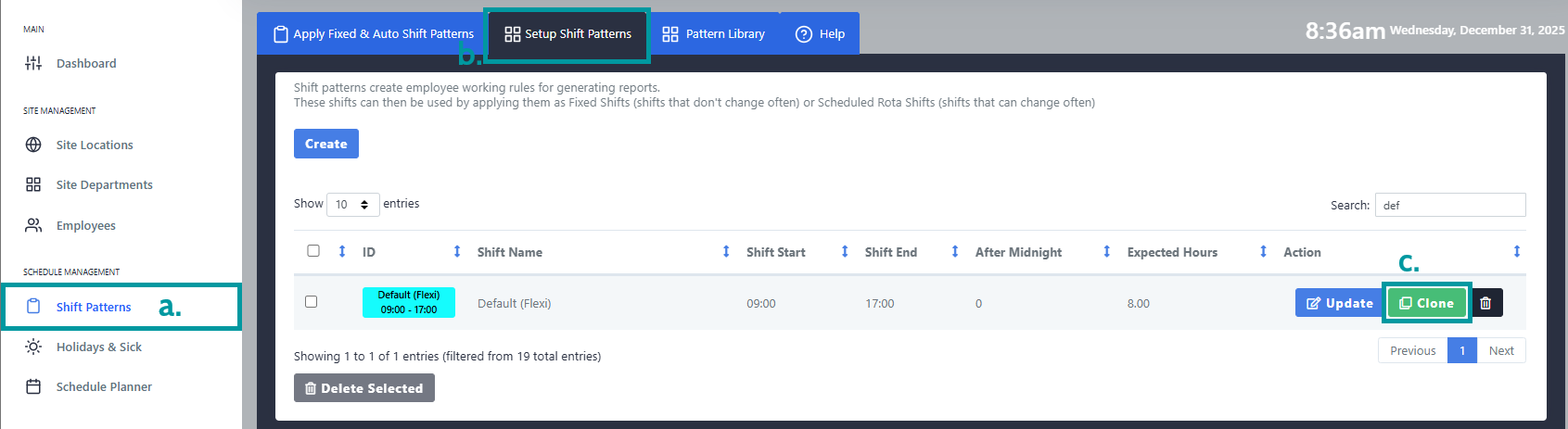
Under Schedule Management select the Shift Patterns(a) option and then navigate to Setup Shift Patterns(b). Once here find the shift you want to create a half day absence for and click Clone(c). This will then bring you back to the shift creation screen, where the new shift can be titled and the absence settings can be added.
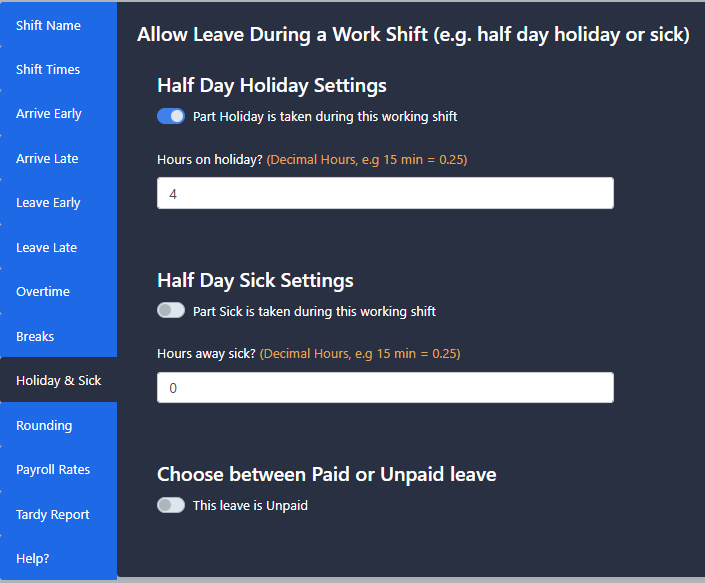
- Navigate to the Holiday & Sick tab(a).
-
Select what type of Leave the half day is appropriate for and how many hours are to be provided as well, an option for if this is paid or unpaid can be found at the bottom. Once done, select Create