
Go2Clock - User Access Levels Explained
User Access Levels Explained
This guide will show you how to assign the different access levels in Go2Clock and explain the difference between the access levels.
Assigning Access levels
- Navigate to the Employees menu in Go2Clock
- Now click View to see the list of your employees
- Click Edit on the right-hand side menu for the employee you would like to give access to
- Navigate to the Login & Password menu
- All access options will be explained below
- Before that, let’s cover commonalities between the options
- You can select the access levels from the first drop-down menu (breakdown below)
- You need to input the employee’s email you wish to grant access to
- You need to generate a random password which will be sent to the user, they can change this password after logging in
- Some access levels will ask if you want to give manager/supervisor access. The super admin can Customise Roles to change the available functions.
- Some access levels will allow you to set a Custom Dashboard Access Level
-
When you are finished, you can hit the Update button on the employee, and they will be emailed to activate the account

Access Level Breakdown
System | Full Dashboard, Reports & Settings
- This will give access to the full functionality of Go2Clock minus a few Super Admin only settings
- Users will be able to see all Departments and Employees in the system
- If they have the Manager Switch enabled they will be able to create, edit and delete anything within the system that they have access too
- Ability to give other Users access up to their access level and below
System | Limited Dashboard & Reports Only
- This will give the user access to assigned Departments and Employees only
- Same rules apply as above just for these Departments
System | Evac Report Only
- This will give access to the Evacuation report only
- People given this access will be Fire Wardens and will be taken straight to the Evacuation report when logging in
- They can create a desktop shortcut on their phone or tablet to get to this quickly
Employee | Full Dashboard (Own Dashboard, Tasks, Mobile Clocking, Report Absence, Leave Requests)
- This allows your Employees to login to their own User Dashboard
- The Employee with be able to see their Weekly Schedule
- They can request Leave or report Absence
- They can start a clock timer for any Project Timers they may have assigned
- They can clock IN and OUT, this will show their geolocation at the point of clocking within the system
- They must have GSP Enabled on their phones to be able to use this feature
Employee | Limited Dashboard (Smartphone View of Own Schedule, Tasks, Clock Records, Report Absence, Request Leave etc)
- Same rules as above, but does not allow clocking IN and OUT
Employee | View Only Dashboard (Smartphone View Only of Own Schedule, Clock Records)
- Same rules as above, but only allows the Employee to view their schedule and clock records
Employee | Clocking Only (Smartphone Mobile Clocking IN/OUT only)
- This only allows Employees to mobile/remote clock and will show the location in the dashboard at the time of the clock
- Employee’s must have GPS enabled for this to work
- Once the clock is made, they are automatically logged out until the next clock
Custom Dashboard Access Level
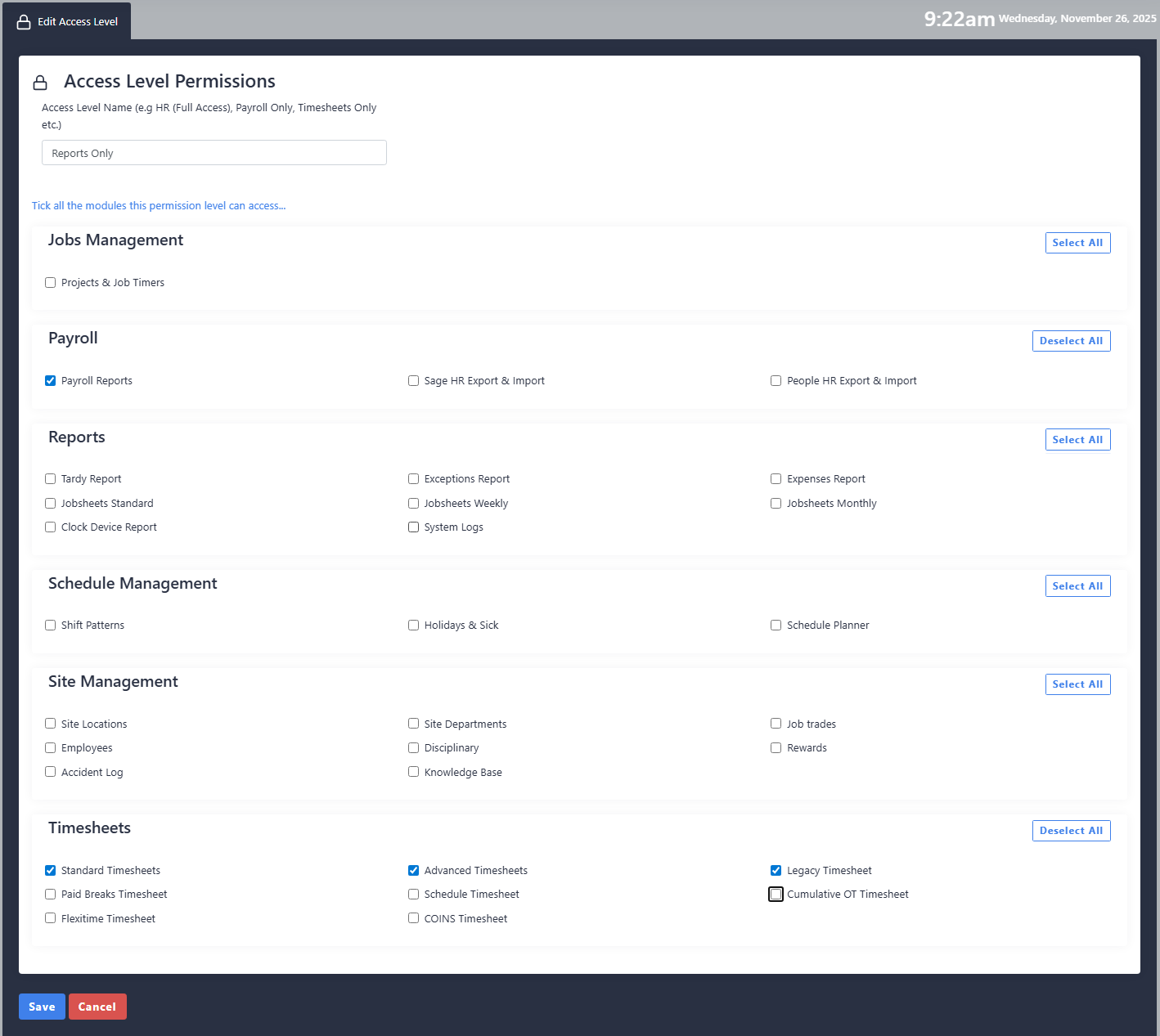
- This essentially allows you to drill down further into what can and cannot be access within the system and can only be accessed by the Super Admin account in System Settings → Access Levels Permissions
- In here you create a new Access Level Permission by selecting what you would to give access to for all the menus within Go2Clock, see sample image for example
- You can then assign this from the drop-down menu under Custom Dashboard Access levels
Customise Roles
- Roles can be used to further restrict sections of the software.
- Permissions for roles can be edited by the Super Admin account in System Settings → System Settings → Customise Roles
- Customisable options include editing the role name and assigning role permissions. We recommend only assigning one role per user.
