Getting Started - 6.5 - Registering Fingerprints (C600 Pro)
Registering Fingerprints and Facial Templates on the C600 Pro V2 Clocking Terminal
1
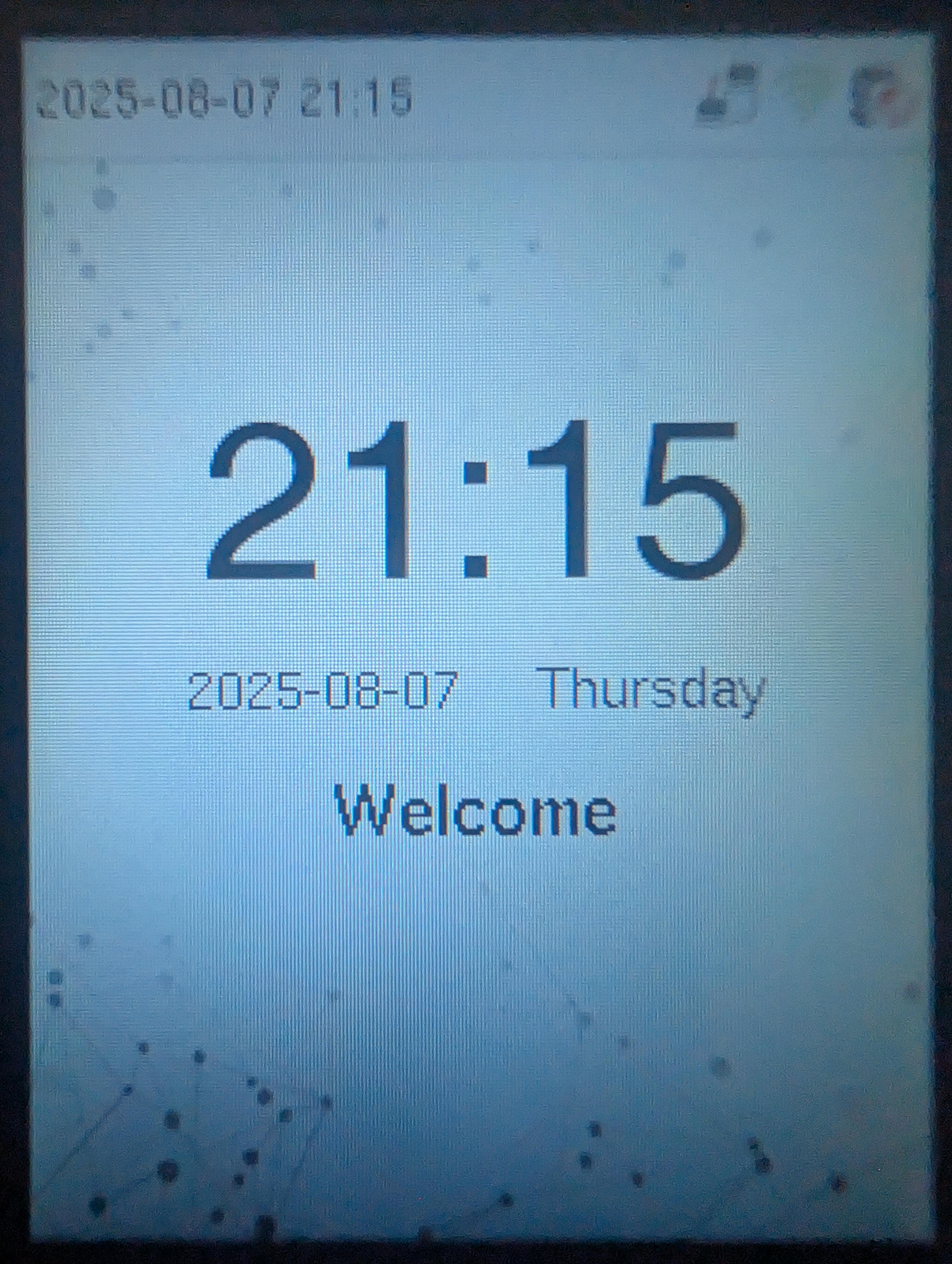
Press the  button located on the keypad on the screen so that a ‘‘Padlock / Please Verify’’ shows on screen and hold the Admin Card in front of the fingerprint scanner to get into the Admin Menu.
2
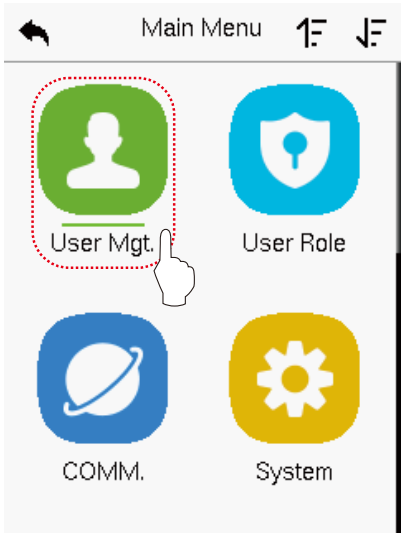
Using the arrow keys on the keypad, navigate and highlight User Mgt icon and press the M/OK key.

3
Navigate toAll Users and press the M/OK key.

4
Using the (arrow keys) to navigate the list of users to find the person you intend to enrol their fingerprint template for. If you know the ID number of the person you wish to enrol you can search for them using search facility box on the bottom of the screen.

5
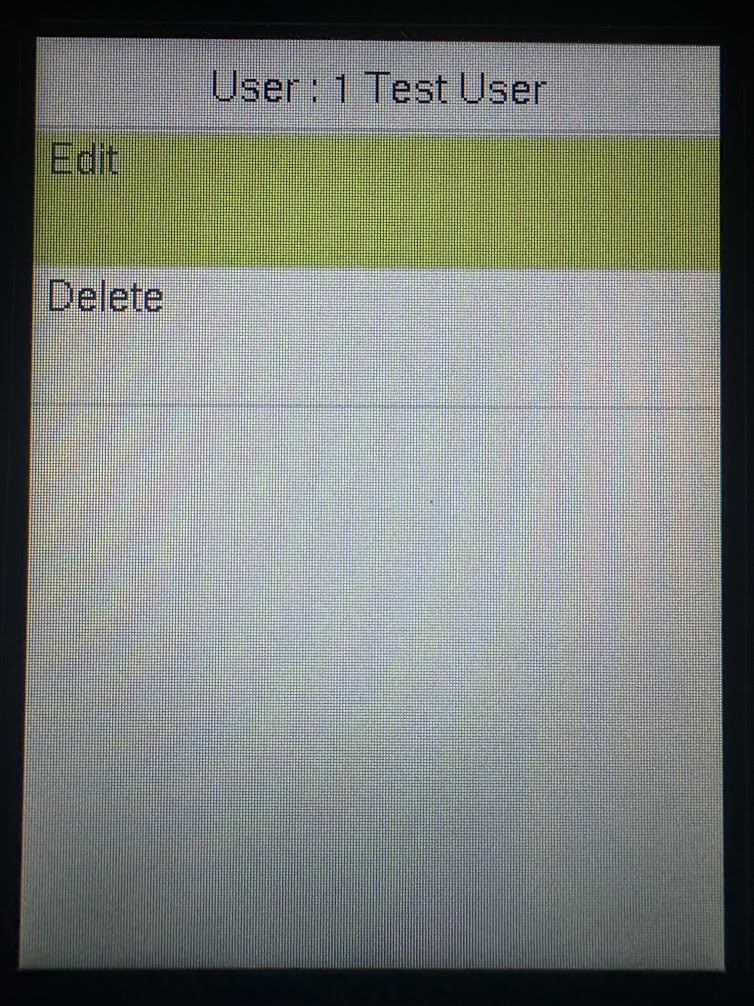
Once you have found the person you intend to enrol a fingerprint template for, select them and press M/OK, highlight Edit and press M/OK. This will take you to their profile within the Clock.
6
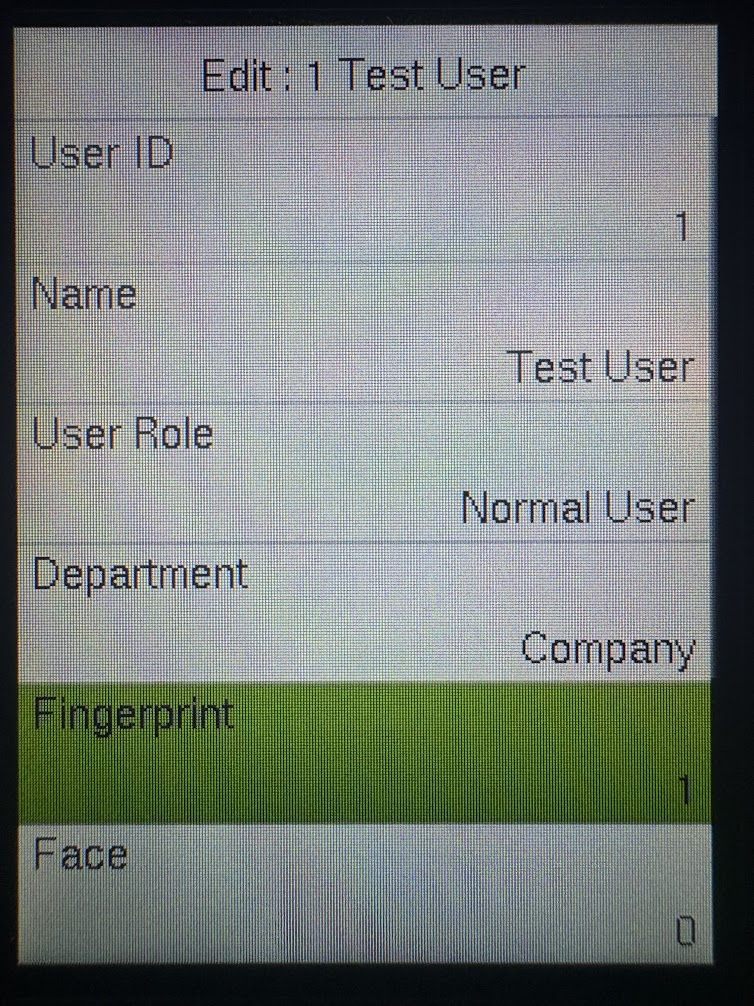
When you are in the selected Employees’ profile within the Clock, you can see their ID, Name, Role etc… We are looking to register a fingerprint so use the keypad to highlight Fingerprint and press M/OK.
7
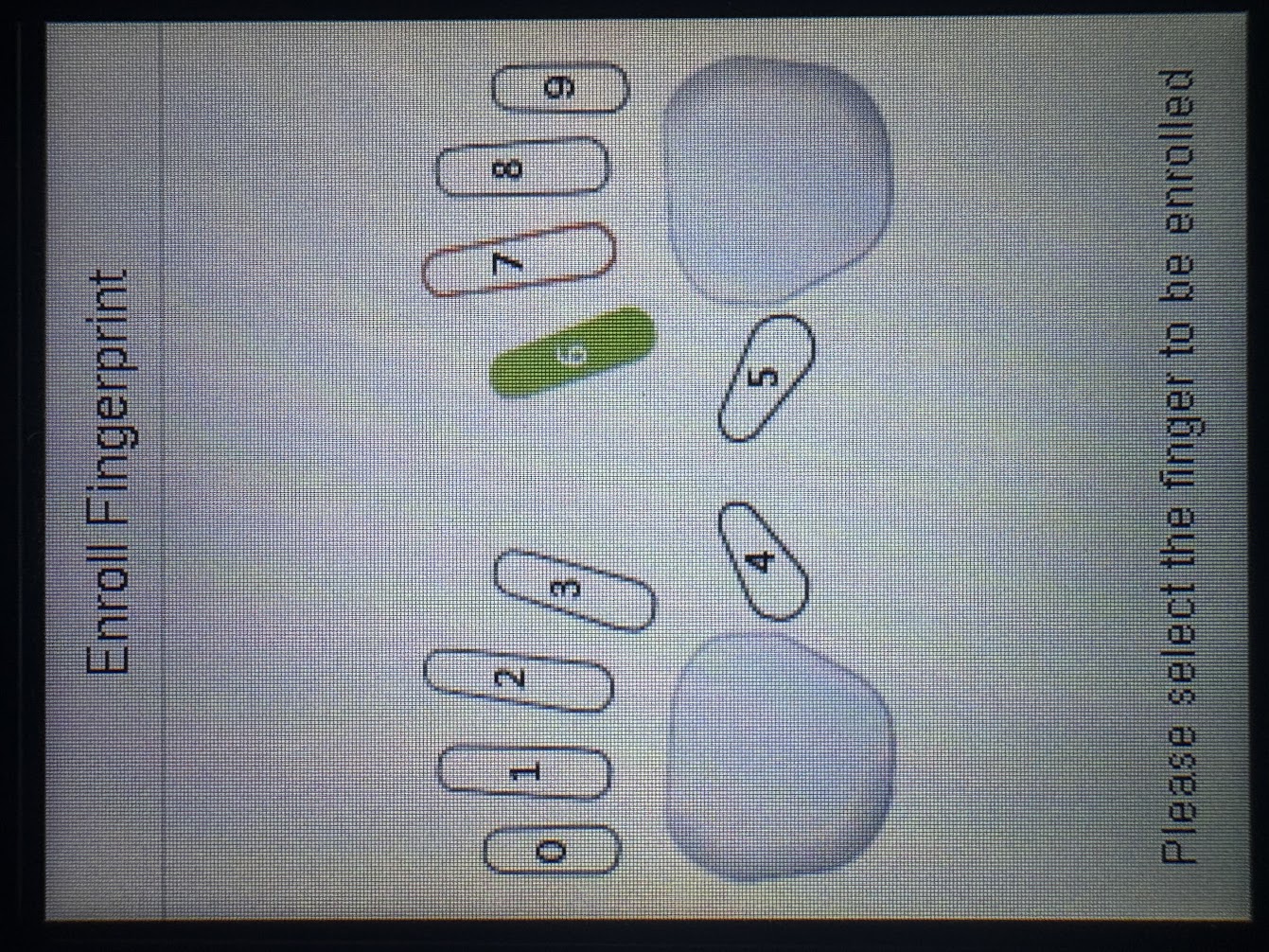
The Clock will now You will be asked to select the finger you wish to enroll. Move between fingers with the arrow keys and press OK to select your desired finger.
8
Ask the user to place their finger on the green, illuminated fingerprint scanner. The Terminal will display an image of the fingerprint, and assign it a 'Quality' rating. It's best to aim for 80% or more, as this minimises the risk of errors in the future. Each fingerprint needs to be registered three times,display a 'tick' to confirm each successful registration. Users should remove the finger between each registration.
9
When all required fingerprints have been registered, press ESC to exit the menus.
Registering Facial Templates
1
Press the Menu button and swipe the Admin card in front of the keypad to access the Admin Menu
2
Select the 'User Mgt' icon and press M/OK
3
Select 'All User' and press M/OK.
4
Use the arrow keys to navigate the list of users to find the person you intend to enrol. If you know the ID number of the person you wish to enrol you can search for them using the keypad, pressing M/OK to confirm.
5
Use the arrow keys to select the 'Face' option and press M/OK
6
The Clock will now go throu
gh the Facial Registration procedure and the selected Employee will need to stand in front of the Clock until it completes. The registration should take no longer than 5 seconds to complete and will say ‘‘THANK YOU’’ once registered.


 button located on the keypad on the screen so that a ‘‘Padlock / Please Verify’’ shows on screen and hold the Admin Card in front of the fingerprint scanner to get into the Admin Menu.


